Mac Keyboard Tester – Test All Keys Online Instantly (2026)
Mac keyboard tester – press every key, see what registers
Press any key on your Mac keyboard. It turns green on the layout below the moment your Mac registers it. Any key that stays dark after pressing has a registration problem – either a hardware failure, a software conflict, or a macOS system-level intercept.
🔒 Privacy Notice: This Mac Keyboard Tester Tool detects keystrokes locally in your browser. No keypress data is recorded, stored, or sent to any server.
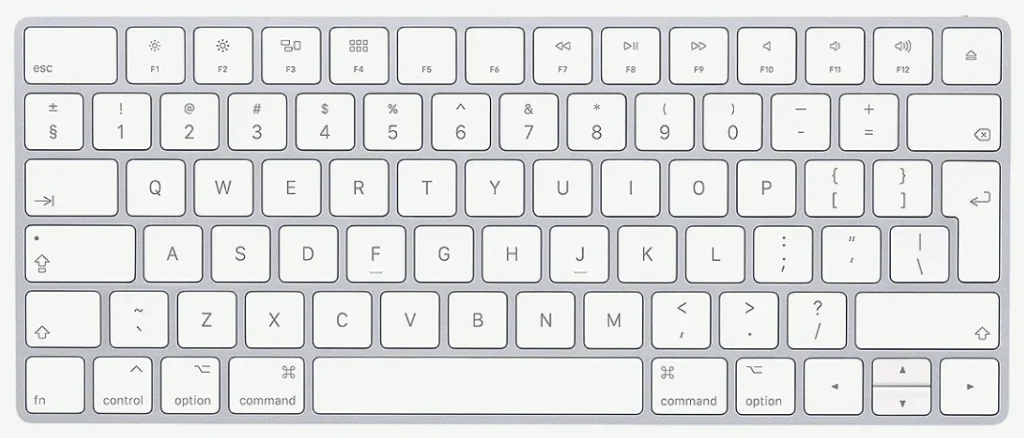
Apple Magic Keyboard layout. Press every key to confirm it registers — each one turns green as the browser sees it. The greyed-out fn and ⏏ keys are handled by macOS itself and can never reach a web page, so they are excluded from the count.
On a Mac the function row sends F1–F12 only while fn is held, unless you have enabled “Use F1, F2, etc. keys as standard function keys” in System Settings → Keyboard. Touch ID is a sensor, not a key, so it never reports a keystroke.
How to use the Mac keyboard tester
- Open this page in Safari, Chrome, or Firefox on your Mac – all three work correctly.
- Click anywhere on the page first to make sure the browser has keyboard focus.
- Press every key row by row – start at Escape and work left to right, top to bottom.
- Each key turns green the moment macOS and the browser register it.
- Keys shown in grey (Touch ID, Globe/Fn) cannot be tested in any browser – test those physically by checking system response.
- Press Reset to clear all results and run the test again on a different keyboard or after a repair.
Test the full keyboard before installing keycaps after a repair, and before closing a MacBook for servicing.
What your result means
All testable keys turn green: Every key that can be captured by a browser sent a clean signal. Your Mac keyboard is registering correctly across all standard keys, modifier keys, and function keys.
One or more standard keys stay dark: That key isn’t reaching the browser. On a MacBook, this typically points to debris under the butterfly or scissor mechanism, a failed key membrane contact, or a damaged flex cable connecting the keyboard to the logic board. On an external Apple keyboard, try a different USB port or USB-C adapter, check the Bluetooth connection stability, and retest.
Modifier keys (⌘, ⌥, ⌃, ⇧) stay dark: Modifier keys are among the most used keys on a Mac keyboard and the most likely to fail under heavy use. If Command, Option, Control, or Shift stays dark, macOS may also be intercepting the key at the system level before it reaches the browser. Test in a different browser first. If the key still doesn’t register in Safari, Chrome, and Firefox, it’s a hardware issue.
Function keys (F1–F12) stay dark: macOS uses F1–F12 as media and system control keys by default. Some system settings intercept them before they reach browser applications. Go to System Settings → Keyboard → Keyboard Shortcuts and check whether “Use F1, F2, etc. keys as standard function keys” is enabled. Enable it, retest, then switch back if needed. If the key still doesn’t register, the hardware is faulty.
Which Mac keys can’t be tested in a browser on Mac Keyboard Tester?
Two categories of keys can’t be captured by any browser-based keyboard tester on Mac, this is a macOS security boundary, not a limitation of this tool specifically.
Touch ID / Power button: Touch ID is processed entirely at the Secure Enclave hardware level and never generates a keydown event that any application – including the browser can see. Test it physically: press it and check whether your Mac prompts for fingerprint authentication or powers on from sleep.
Globe / Fn key: The Globe key (introduced on M1 MacBooks) and the Fn key on older MacBooks are handled by the macOS input system at a layer below browser-accessible events. Pressing Globe opens the emoji picker or triggers Fn layer functions, the keydown event never reaches JavaScript. Test it physically by pressing it and observing whether the emoji picker appears.
OS-intercepted keyboard shortcuts: Key combinations like ⌘+Space (Spotlight), ⌘+Tab (app switcher), ⌃+↑ (Mission Control), and ⌘+Q are handled by macOS before they reach any application. These combinations won’t light up the individual keys in this tester. Test each key individually rather than as a combination to confirm both keys register on their own.
This limitation applies equally to keyboardtester.com, key-test.io, and every other browser-based keyboard tester. Any tool claiming to capture Touch ID or Globe key events on macOS is not reporting accurately.
MacBook butterfly vs. scissor keyboard – does it affect the test?
The test works identically on both mechanisms it reads keydown events regardless of the physical switch type beneath the keycap. The difference matters only when a key fails.
Butterfly mechanism (MacBook 2015–2019): The butterfly keyboard used a very shallow 0.5mm key travel design that made it highly sensitive to small debris. A single crumb or dust particle could prevent the mechanism from actuating. Apple issued a free Keyboard Service Program covering affected models through 2021. If your MacBook falls in this range and keys are failing, Apple’s service program may still be relevant, check the Apple Support page for your model.
Scissor mechanism (MacBook Air 2018+, MacBook Pro 2019+): Scissor keyboards use a more conventional 1mm travel design that’s more tolerant of debris. Key failures on scissor keyboards are more likely to point to a membrane contact issue or a flex cable problem than debris alone. Compressed air through the keyboard at a low angle (Apple recommends 75 degrees from horizontal in their cleaning guidance) clears most debris before escalating to a repair.
Magic Keyboard (external): The external Magic Keyboard uses a 1mm scissor mechanism. Key failures on Magic Keyboard almost always point to battery issues, Bluetooth pairing problems, or physical contact wear from heavy use. Recharge fully, re-pair via Bluetooth settings, and retest before concluding a key has failed.
Why does my Mac keyboard work in some apps but not others?
macOS application-level keyboard focus explains most of this. The browser must have active keyboard focus for this tester to capture keydown events. If another application is in the foreground or a system dialog is open, keydown events go to that application instead of the browser.
Click directly on the test page to return focus to the browser, then retest the key. If the key still doesn’t register in the browser after confirming focus, test it in TextEdit or Notes, if it works there, the issue is browser-specific rather than hardware. If it fails everywhere including TextEdit, the key has a hardware or macOS driver problem.
Some Mac applications implement their own keyboard shortcut layers that intercept keys before the OS passes them to other apps. If a key works in TextEdit but not in a specific application, that application has claimed the key as a shortcut, it’s not a keyboard hardware problem.
Frequently asked questions
How do I test my MacBook keyboard online?
Open this MacBook keyboard tester in Safari, Chrome, or Firefox on your MacBook. Click on the page to give it keyboard focus, then press every key row by row. Each key turns green when it registers. Keys that stay dark after pressing have a registration problem. Touch ID and the Globe/Fn key can’t be captured by any browser and must be tested physically.
Why won’t my Mac function keys register in the keyboard tester?
macOS intercepts F1–F12 as media control keys by default, sending them to the system rather than to browser applications. Go to System Settings → Keyboard → Keyboard Shortcuts and enable “Use F1, F2, etc. keys as standard function keys.” Retest the function keys with that setting enabled. If they still don’t register, the hardware is failing.
My Command key doesn’t show up – is it broken?
Test ⌘ by pressing it alone — not in combination with another key. Combinations like ⌘+Space trigger macOS shortcuts that prevent the keydown event from reaching the browser. Pressing ⌘ alone registers it as a standalone keydown event that this tester captures. If ⌘ alone stays dark, the key has a hardware or macOS driver problem. Try a different browser first to rule out a browser-specific issue.
Can I test an external Apple Magic Keyboard with Mac Keyboard Tester?
Yes, connect the Magic Keyboard via USB cable or pair it via Bluetooth, open this page in your browser, and press every key. The Mac keyboard tester layout matches the Magic Keyboard’s key arrangement including the Touch ID key position. Touch ID itself can’t be tested in a browser – confirm it works by pressing it and checking for the fingerprint authentication prompt.
My MacBook keyboard started failing after a liquid spill – will this test help?
The Mac keyboard tester shows exactly which keys are registering and which aren’t after liquid damage. Run the test immediately after the spill (once the Mac is fully dry and powered on safely) to document which keys failed – this helps a repair technician identify damaged areas on the keyboard flex cable or membrane. Liquid damage typically produces clusters of failed keys rather than isolated individual failures.
Related keyboard tests
The Mac keyboard tester confirms which keys register on your Apple keyboard. These tests go deeper into specific performance characteristics:
- Laptop keyboard test – if you’re testing a MacBook’s built-in keyboard, the laptop layout shows a compact arrangement without a numpad that matches the MacBook keyboard more closely
- Keyboard switch tester – after a Mac keyboard repair or keycap replacement, use the switch tester’s tracking feature to confirm every repaired key registers before reassembling
- Keyboard Ghosting test – confirm your Mac keyboard handles simultaneous key combinations like ⌘+Shift+Option without dropping any key in the combination
Run the Keyboard Checker as a first check before using this Mac-specific layout – it captures keydown events from any keyboard and gives you a quick overview before you run the detailed Mac layout test.
Run Again Mac Keyboard Tester