Keyboard Tester Online – Test every key, instantly (2026)
Keyboard tester online – press a key, see it light up
Press any key on your keyboard right now. It lights up green on the display below – that means it’s working. If a key stays dark after you press it, that key has a problem.
🔒 Privacy Notice: This tool detects keystrokes locally in your browser. No keypress data is recorded, stored, or sent to any server.
Full-size ANSI 104-key layout. Press every key on your keyboard — each one turns green the moment the browser registers it. Anything still grey after you have pressed it is a key worth investigating.
Print Screen, Scroll Lock and Pause/Break are intercepted by some browsers and operating systems. If they stay grey while every other key lights up, test those three physically before assuming a fault.
Quick answer – What this tool tells you
- Works on any keyboard – Windows, Mac, Linux, Chromebook, laptop, mechanical, membrane
- Green key = registered correctly – the key is working
- Dark key after pressing = no signal received – the key may be broken, stuck, or faulty
- All keys green = your keyboard passed the full test
How to use the keyboard tester
Press every key on your keyboard one by one. Each key turns green the moment your computer registers it. Start from the top-left (Escape) and work your way across each row – that way you won’t miss any key.
If you want to test a specific key that’s been acting up, press only that key and watch whether it lights up. A key that registers twice with one press points to a chatter problem – use the keyboard chatter test to confirm it.
When you’re done, press Reset to clear all results and run the test again.
What do the results mean?
All keys lit up green: Your keyboard is fully functional. Every key sent a signal to your computer and the browser captured it correctly.
One or more keys stayed dark: That specific key didn’t register. Before assuming it’s broken, try three things first: press it harder, check if it’s physically stuck down, and try a different browser. If it stays dark across all three tests, the switch or contact beneath that key has failed.
A key lit up but feels wrong: This tool confirms electrical registration – it can’t test switch feel, actuation force, or key wobble. If a key registers but feels mushy or unresponsive, the switch is wearing out even though it still works electrically.
Key registered twice from one press: That’s keyboard chatter, a debounce failure where the switch contact bounces and fires two keydown events within milliseconds. The keyboard chatter test measures the exact gap between events so you can confirm it.
Keyboard Keys Not Working? 7 Easy Fixes That Actually Work (2026)
Which keyboards work with this tester?
Every keyboard that connects to a computer works here – wired USB, wireless USB receiver, Bluetooth, and built-in laptop keyboards.
Windows keyboards: Full 104-key layout supported. All standard keys including PrintScreen, Scroll Lock, Pause/Break, and the Numpad register correctly.
Mac keyboards: All standard keys register – Command (⌘), Option (⌥), Control, and Function keys all work. Touch ID and the Globe/Fn key are handled at the hardware level and can’t be captured by any browser-based tool. Test those physically by checking system response.
Laptop keyboards: Built-in laptop keyboards work the same as external keyboards. If you’re testing a laptop before buying it secondhand, press every single key including Fn combinations. The laptop keyboard test shows a compact layout that matches most laptop keyboards for a more focused test.
Mechanical keyboards: Fully supported. Hot-swap keyboards that have just had switches replaced should use the keyboard switch tester — it tracks which keys have and haven’t been tested so you can confirm every switch is seated correctly.
Gaming keyboards: Work the same as any other keyboard here. To test gaming-specific features like N-key rollover and anti-ghosting, use the dedicated tools listed below.
Why some keys don’t register in this tester
A few keys can’t be captured by any browser-based keyboard tester – this is a browser security limitation, not a flaw in this tool.
Keys that never register in browsers:
- PrintScreen – intercepted by the operating system before the browser sees it
- Fn key – handled at firmware level on most keyboards
- Touch ID / Power on Mac – hardware-level key
- Windows key (⊞) combinations – Win+D, Win+L and similar OS shortcuts are intercepted
Keys that sometimes don’t register:
- Escape – some browsers use it to exit full-screen or cancel actions. If Escape doesn’t light up, try pressing it while the tool is focused and not in a dialog.
- Alt+F4, Cmd+Q – OS-level keyboard shortcuts close the browser window rather than sending a keydown event to the page.
If a key doesn’t register and it’s not on the lists above, that key likely has a hardware or driver issue.
10 keyboard tests available on KeyboardTesterOnline
This site has a dedicated tool for every keyboard problem you might run into. Each test targets one specific thing — results are clearer and faster than a generic tester.
| Tool | What it tests | Use it when |
|---|---|---|
| Keyboard tester (this page) | Every key registers or not | General key check, before/after repair |
| N-key rollover test | How many keys register simultaneously | Gaming, multi-key combos |
| Anti-ghosting test | Whether specific combos get blocked | WASD + Shift + Space failures |
| Keyboard chatter test | Double keystrokes from one press | Key types twice, double letters |
| Keyboard latency test | Input response time in milliseconds | Competitive gaming, latency comparison |
| Keyboard switch tester | Every switch after a build or hot-swap | Post-build verification, repair |
| Spacebar test | Spacebar double-press and chatter | Spacebar types extra spaces |
| Polling rate test | Keyboard Hz as seen by browser | Compare keyboards, verify polling rate |
| CPS test | Spacebar clicks per second | Switch actuation speed, gaming |
| Mac keyboard test | Mac-layout keys including ⌘ and ⌥ | MacBook or Apple keyboard check |
| Laptop keyboard test | Compact layout, no numpad | Used laptop check before buying |
What’s the difference between this Keyboard Checker and the others on this site?
This homepage tester does one thing: confirm whether each key sends a signal. That’s all you need for most situations – a key either works or it doesn’t.
The other tools on this site go deeper into specific problems. N-key rollover measures simultaneous key limits. The chatter test measures the gap between duplicate keydown events in milliseconds. The latency test runs 10 reaction-time trials and averages them. Each tool was built for a specific question, not as a general-purpose replacement for this one.
If you’re not sure which test you need, start here. The result will tell you whether to go deeper.
Frequently asked questions
Does this keyboard tester record what I type?
No. The tool works entirely in your browser – JavaScript listens for keydown events locally and lights up the matching key on screen. Nothing is transmitted to any server. You can verify this yourself by disconnecting from the internet and testing, it works the same way offline.
Why does my Escape key not light up?
Escape is sometimes intercepted by the browser itself, especially when a dialog or full-screen mode is active. Make sure the test page has focus (click anywhere on the page first) and try again. If it still doesn’t register in multiple browsers, the key may have a hardware issue.
Can I use this to test a keyboard before buying it?
Yes, this is one of the most common uses. Press every key and confirm each one lights up. Pay attention to keys in the corners and the Numpad – these are the most common failure points on used keyboards. For a more focused pre-purchase test, use the laptop keyboard test if you’re checking a laptop.
Does it work on a phone or tablet?
This tester is designed for physical keyboards. On a phone or tablet with an on-screen keyboard, the browser keyboard intercepts input before it reaches this tool. If you have a Bluetooth or USB-OTG keyboard connected to your phone or tablet, that will work.
My keyboard passes this test but some keys feel wrong – what does that mean?
This tool confirms electrical registration only. It can’t measure switch actuation force, key wobble, or how a switch feels when it bottoms out. A key that registers correctly but feels mushy, scratchy, or inconsistent has a mechanical issue – the switch is still making contact but the physical mechanism is worn. Lubing or replacing the switch is the fix.
How is this different from just typing in Notepad?
Notepad shows you the character a key produces, not whether the key itself registered. Modifier keys like Shift, Ctrl, Alt, and Win don’t produce visible characters in Notepad. This tester shows the raw keydown event for every key including all modifiers, media keys, and function keys, which Notepad can’t do.
Test your keyboard now – no account, no install, no data collected
Keyboard Tester Online runs entirely in your browser. There’s nothing to download, no account to create, and no data leaving your device. Press a key at the top of this page and the result is instant.
If you find a key that isn’t working, the keyboard chatter test and keyboard switch tester are the two most useful next steps depending on whether the key registers but doubles, or doesn’t register at all.
What are the main keyboard layout standards?
Physical keyboards commonly follow three major layout standards: ANSI, ISO, and JIS. They differ mainly in key count, Enter-key shape, Shift-key size, and regional language support.
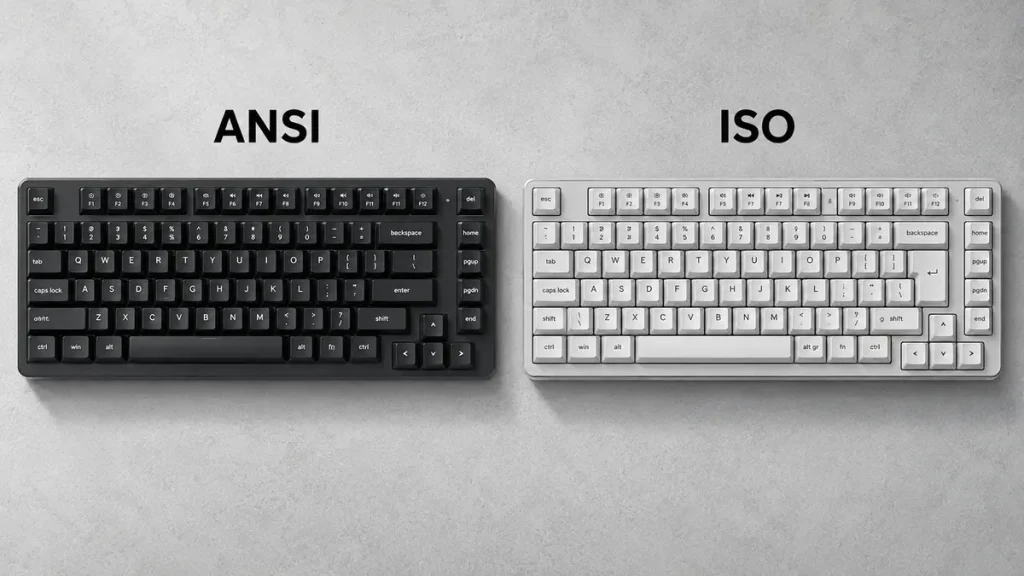
- ANSI: A full-size ANSI keyboard has 104 keys. It uses a wide horizontal Enter key and a long Left Shift key. ANSI is common in North America.
- ISO: A full-size ISO keyboard has 105 keys. It uses a tall, inverted-L-shaped Enter key, a shorter Left Shift key, and an additional key for regional languages. ISO is widely used in Europe.
- JIS: The Japanese Industrial Standard is designed for typing both Latin characters and Japanese writing systems. JIS keyboards include additional keys to support Japanese input.
These layouts use different physical key arrangements, so a keyboard tester should account for the layout being tested.